

Add Contacts
You can add a Contact in three different ways: via API, CSV upload, or manually.1. Add Contacts programmatically via API
You can add contacts programmatically using the contacts endpoint.first_name: The first name of the contact.last_name: The last name of the contact.unsubscribed: Whether the contact is unsubscribed from all Broadcasts.properties: A map of custom property keys and values to create (learn more about custom properties).
2. Add Contacts by uploading a .csv
You can also add Contacts by uploading a .csv file. This is a convenient way to add multiple Contacts at once.- Go to the Contacts page, and select Add Contacts.
- Select Import CSV.
- Upload your CSV file from your computer.
- Map the fields you want to use. You can map the fields to:
email,first_name,last_name, andunsubscribed, or any Contact properties you’ve already created. - Optionally add the contacts to an existing Segment.
- Select Continue, review the contacts, and finish the upload.
3. Add Contacts manually
- Go to the Contacts page, and select Add Contacts.
- Select Add Manually.
- Add the email address of the contact in the text field (separated by commas or new lines for multiple contacts).
- Optionally add the contact to an existing Segment.
- Confirm and click Add.
Contact Properties
Contact Properties can be used to store additional information about your Contacts and then personalize your Broadcasts.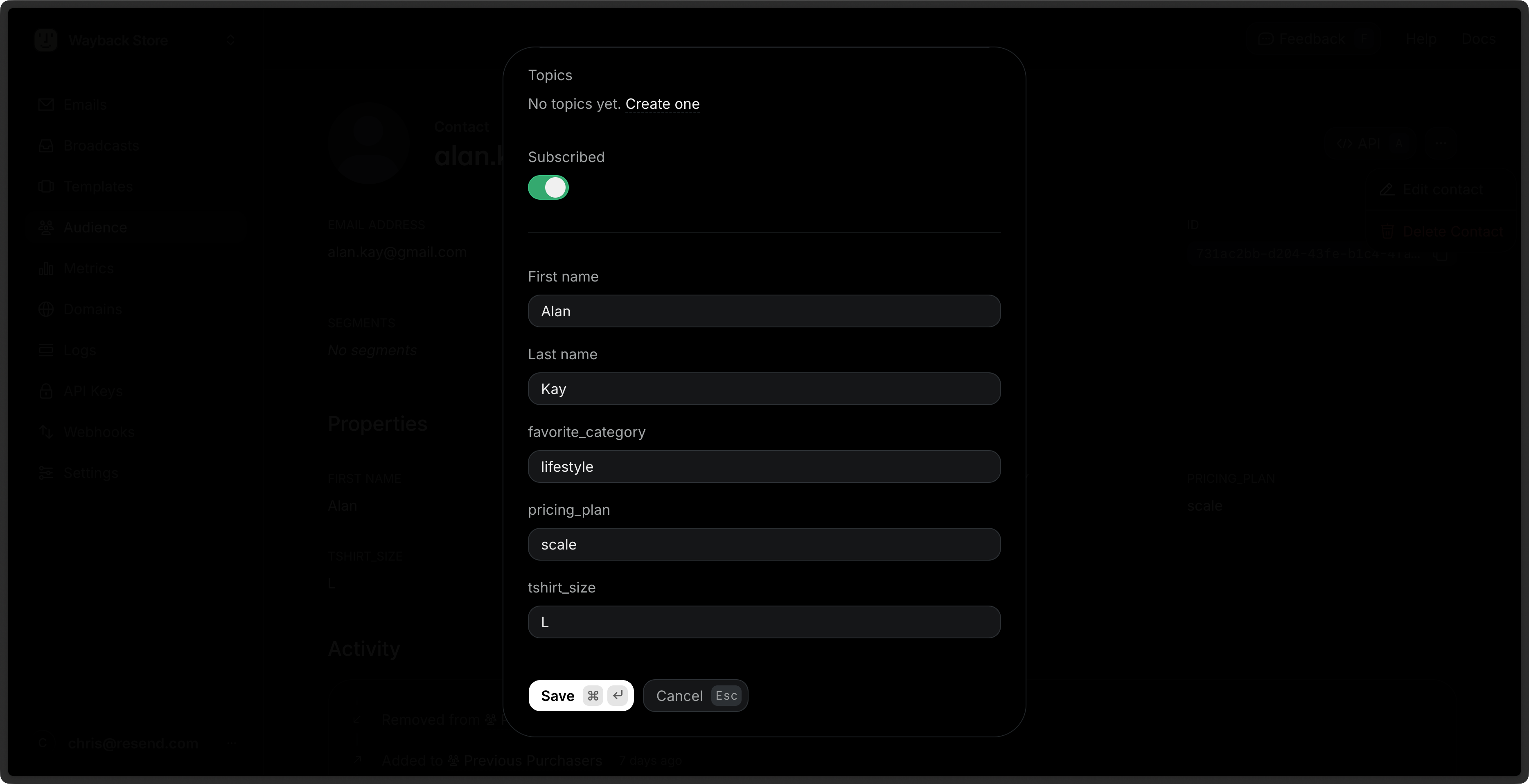
first_name: The first name of the contact.last_name: The last name of the contact.unsubscribed: Whether the contact is unsubscribed from all Broadcasts.email: The email address of the contact.
View Contacts
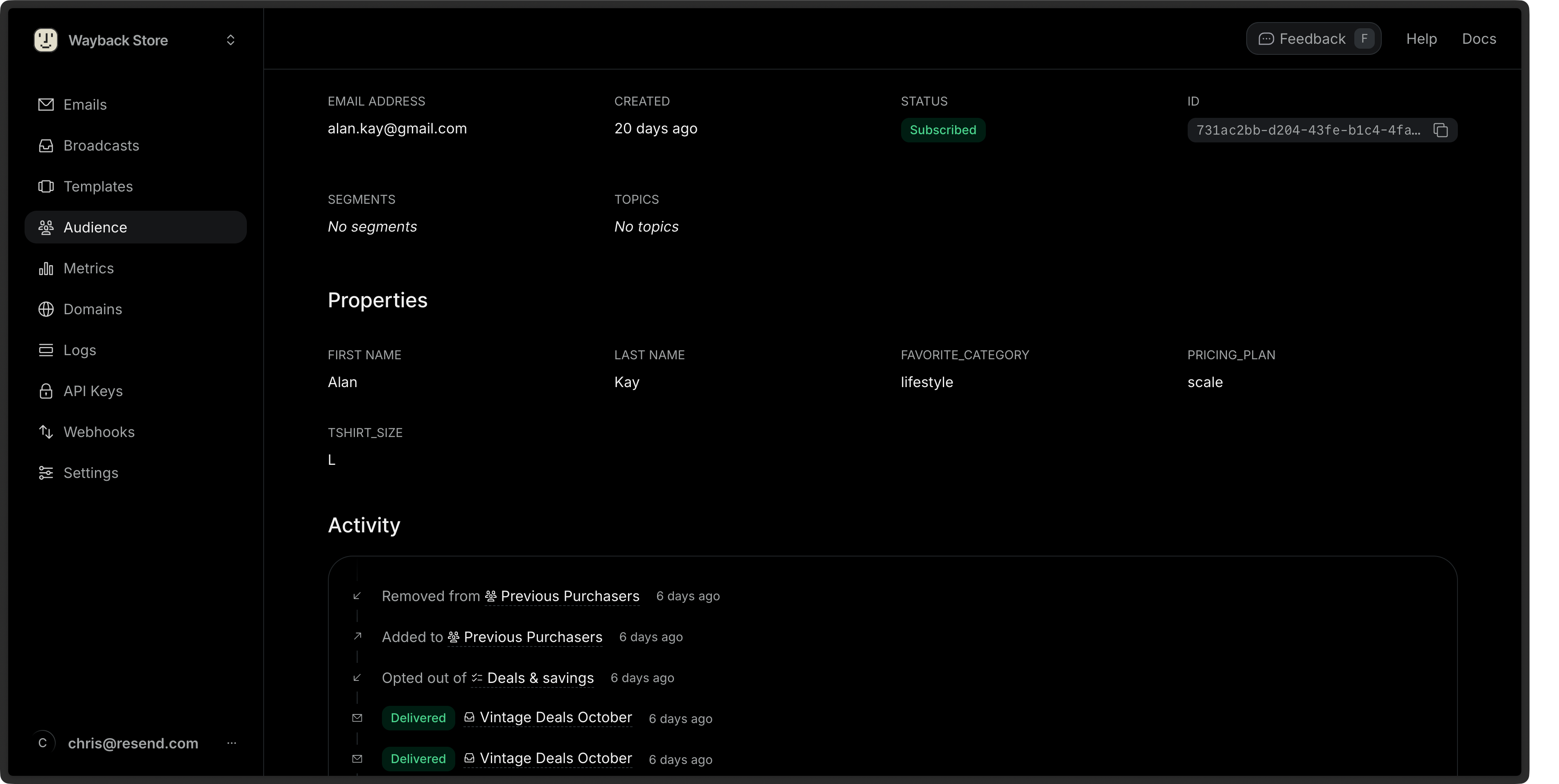
You can view your Contacts in the Contacts page.- Go to the Contacts page.
- Click on the Contact you want to view.
- View the Contact details.
Edit Contacts
- Go to the Contacts page.
- Click on the More options button and then Edit Contact.
- Edit the Contact details and choose Save.
id or email of the Contact.
Bulk Actions
You can perform actions on multiple Contacts at once by selecting them from the Contacts page.- Go to the Contacts page.
- Select multiple Contacts by clicking the checkbox next to each Contact.
- Click the Edit button in the bulk actions bar.
- Choose an action:
- Add to segments: Add the selected Contacts to one or more Segments.
- Subscribe to topics: Subscribe the selected Contacts to one or more Topics.
Delete Contacts
- Go to the Contacts page.
- Click on the More options button and then Delete Contact.
- Confirm the deletion.