

- reduces the likelihood of your emails being marked as spam
- improves deliverability for any other marketing or transactional emails you send
Unsubscribe Statuses
The Contacts page shows the global unsubscribe status of each Contact.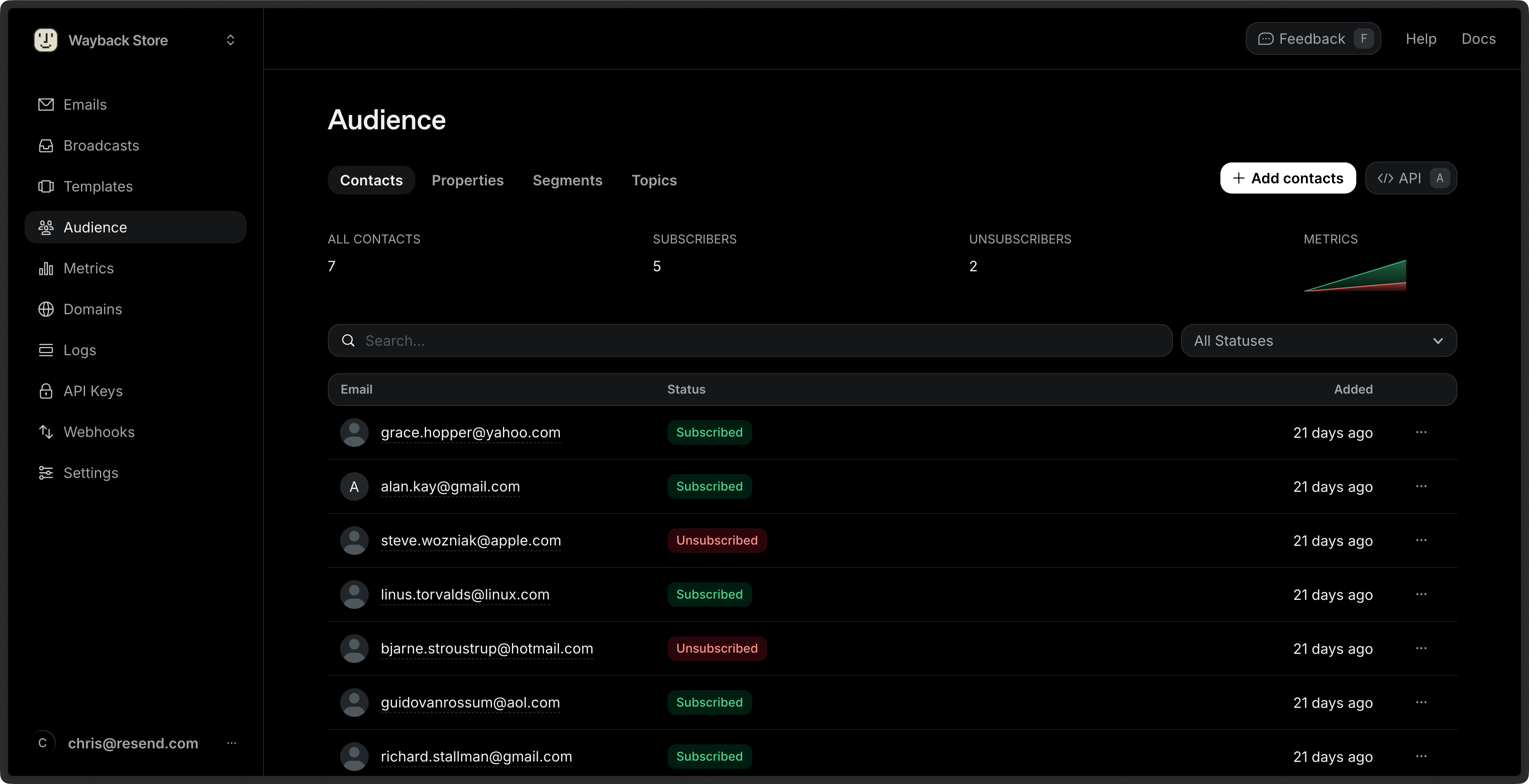
- Unsubscribed: the Contact has unsubscribed from all emails from your account.
- Subscribed: the Contact is subscribed to at least one Topic.
Topic Subscription Statuses
You can view the subscription status of each Topic for a given Contact by clicking on the Contact’s row.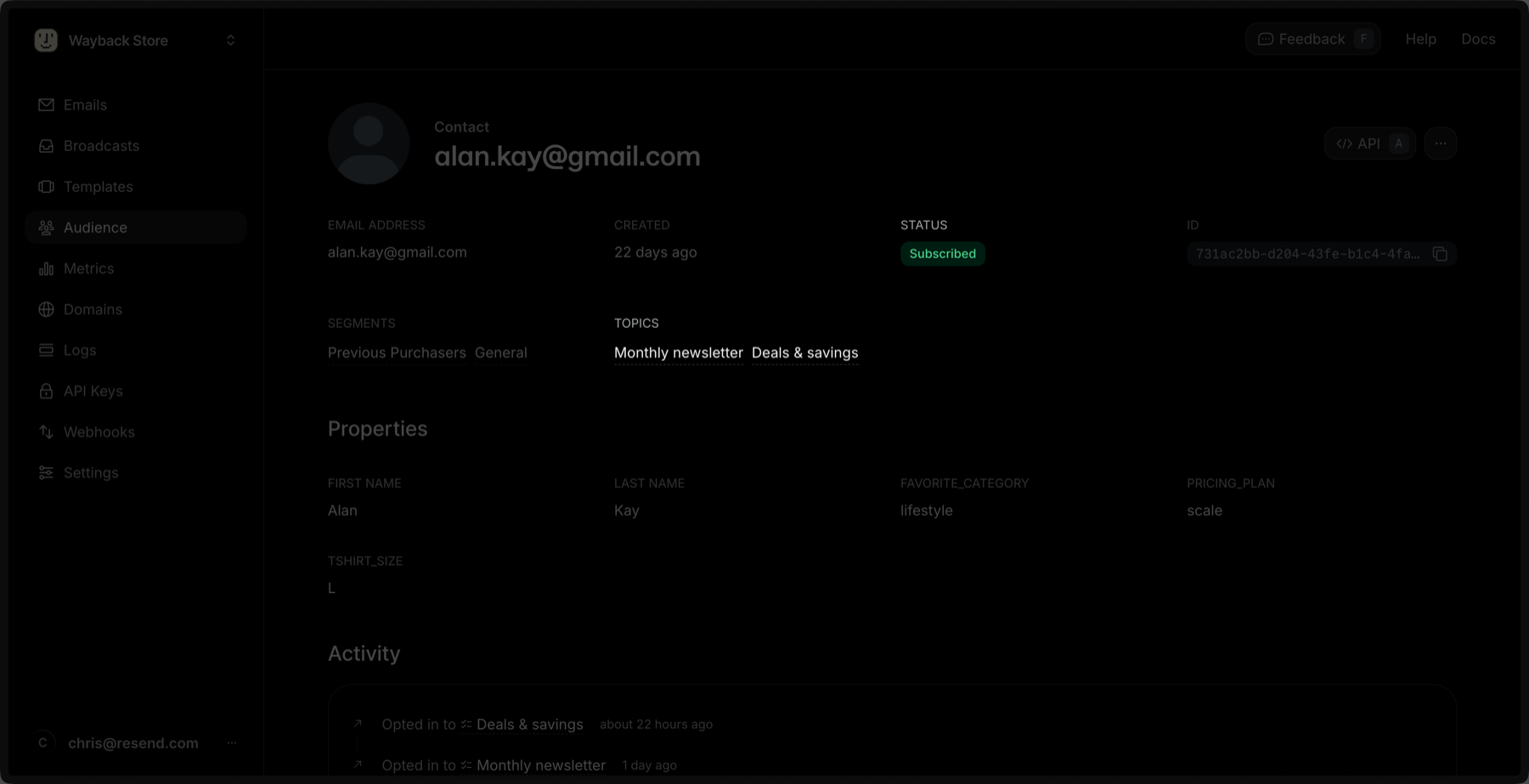
- Subscribed: the global subscription status for the Contact.
- Topics: the list of Topics the Contact is subscribed to.
Updating a Topic Subscription for a Contact
You can update a Topic subscription for a Contact by clicking the Edit button in the Topic’s row.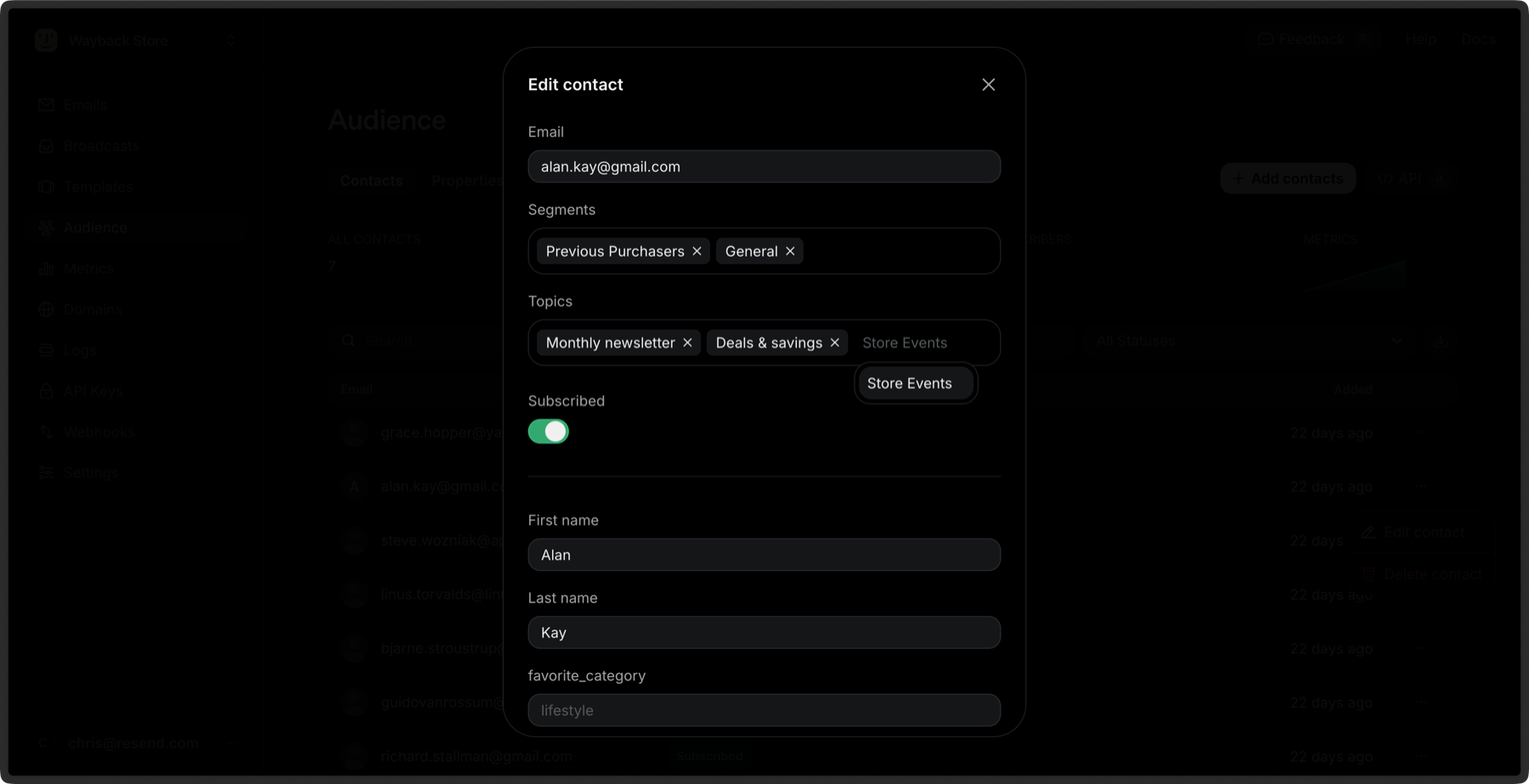
Bulk Subscribe to Topics
You can subscribe multiple Contacts to Topics at once:- Go to the Contacts page.
- Select multiple Contacts by clicking the checkbox next to each Contact.
- Click the Edit button in the bulk actions bar.
- Select Subscribe to topics.
- Choose the Topics you want to subscribe the Contacts to.
- Click Subscribe.